


Pull Iron Bank Image
Overview
This document provides the instructions to log in to Iron Bank to pull an image and view the resulting code.
Step-by-Step Guide
- Log into Harbor using the LOGIN VIA OIDC PROVIDER button.
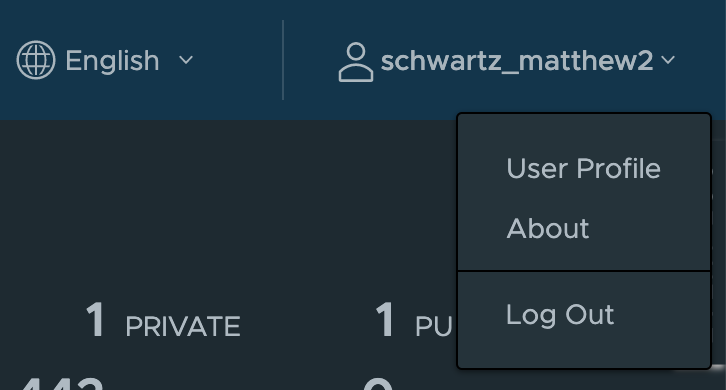
- Click User Profile under the profile dropdown in the top right corner of the screen.
- Copy the CLI Secret using the copy button to the right of the secret.

- Open a terminal and enter:
docker login registry1.dso.milThis will prompt you for a username. Use the username specified in the User Profile of Harbor. It will then prompt you for a password. Paste the CLI secret.
If it succeeds, you will see a Login Succeeded message, as in the following:
$ docker login registry1.dso.mil

Username: schwartz_matthew2
Password:
Login Succeeded
FAQs
Why did my credentials work once, but don't work now?
The Harbor website must be open for your CLI secret to work.