


Dependency Check - Recreate Pipeline
Overview
This guide shows users how to recreate a job using their local machine's pipeline, enabling them to test and clean their pipelines independently.
Prerequisites
Docker knowledge is helpful, but not needed.
- Download and install Docker
- Run:
docker login http://registry.il2.dso.mil/in your terminal to log in to Docker.
- Username: P1 username
- Password: GitLab Personal Access Token
Step-by-Step Guide
Use the template command to build your Docker run. Docker run template command:
bashdocker run --rm -it -w /app -v < your_app_repo_path >:/app -v < your_app_repo_path >:/usr/share/dependency-check/data < image_url > shObtain the image from the dependency check job in the pipeline.
a. The
<image_url>can be obtained from the job log.${DOCKER_REGISTRY}is set to: http://registry.il2.dso.mil/. Below is an example for the dependency check job:
b. Using this example, the image will be:
registry.il2.dso.mil/platform-one/devops/pipeline-templates/pipeline-job/dependency-check622-sonar-scanner462-dotnet-31:090621NOTE: The specific version of the image will change over time. Please verify the current image in the dependency-check job in your current pipeline.
The app that will be used in this example is cpp-world, located locally at
/Users/some_user/Workspace/cpp-world/.Run the image locally using a Docker run command, similar to this sample Docker run command:
bash# Option 1: Using full path docker run --rm -it -w /app -v /Users/some_user/Workspace/cpp-world:/app -v /Users/some_user/Workspace/depcheck_data/:/usr/share/dependency-check/data registry.il2.dso.mil/platform-one/devops/pipeline-templates/pipeline-job/dependency-check622-sonar-scanner462-dotnet-31:090621 bashe # Option 2: CD to the root of the project directory cd cpp-world docker run --rm -it -w /app - v $PWD:/app -v $PWD:/usr/share/dependency-check/data registry.il2.dso.mil/platform-one/devops/pipeline-templates/pipeline-job/dependency-check622-sonar-scanner462-dotnet-31:090621 shYou are now in the shell with the terminal with your application in your current working directory. Nothing else is required from the user. However, some things to know and remember include the following:
INFO
A folder called "app" is an arbitrary folder to hold artifacts. The folder will be created if it does not exist. While inside the container, any files created/modified in here will reflect in the directory specified when exiting the container. The "sh" at the end will bring you to a terminal within the container.
NOTE
The first mount is the actual application itself. The second mount is the CVE Database; it is not necessarily needed, but it will speed up subsequent runs.
You can refer to the Docker Manual Page, but the following run commands argument summarizes what is being used here:
bash--rm # Removes anonymous volumes after exiting the container, freeing up resources -it # Allows user to shell into and interact with the container -w # Changes working directory within the container -v # Bind mount a volume allowing sharing between files on your machine to the containerRun the dependency check script. Dependency check script template:
bashdependency-check.sh -n --scan "${DEPENDENCY_SOURCES}" --format "ALL" --disableOssIndex --enableExperimental --out /app/reports/Search for and obtain dependency sources using the variable
DEPENDENCY_SOURCES.- In the example case from cpp,
CMakeLists.txt\*\*/\_.cmake.
logDEPENDENCY_CHECK_EXTRA: "--enableExperimental" DEPENDENCY_SONAR_SOURCES: "CMakeLists.txt" DEPENDENCY_SOURCE: "CmakeLists.txt,**/.*.cmake"- In the example case from cpp,
Replace the variables with your sources. a. In the example earlier, a full scan would be: --scan "CMakeLists.txt --scan "*/.cmake"
Dependency check example:
bashdependency-check.sh -n --scan "CMakeLists.txt" --format "ALL" --disableOssIndex --enableExperimental --out /app/reports/NOTE
DEPENDENCY_SONAR_SOURCES can be ignored. This var is only used to avoid scanning the repository in SonarQube, which the SonarQube job is already doing.
When finished, close the container by typing "exit" in the terminal.
Running a Dependency Check on Multiple Targets
Define the targets as parameters with multiple scans, such as: --scan "target_1" --scan "target_2" --scan "target_n"
Users should then be able to navigate to where their app resides, and a directory "reports" would have been created with the generated reports in different file formats.
a. From the example earlier, the reports are located under:
/Users/some_user/Workspace/cpp-world/reports/dependency-check.*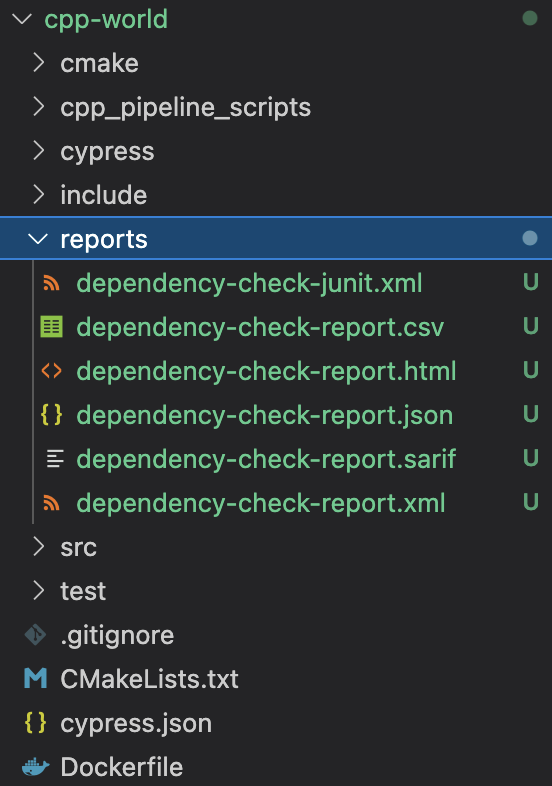
DEPENDENCY_SOURCES by Project Lists
Troubleshooting
Your dependency check fails with "Could not perform Node Audit Analysis. Invalid payload submitted to Node Audit API."
a. This occurs when the npm versions are not matched with the dependency check.

Solution:
- Clone the repository locally.
- Upgrade/downgrade to the appropriate npm version (6.14.11).
- Run:
rm -rf ./node_modules package-lock.json & npm i- Push back up to the repository and rerun the pipeline.
FAQs
Will I be able to run this for other pipeline jobs?
This is in progress.