


Mattermost Notification Plugin
Overview
The Notification Plugin enables authorized PSA senders to effortlessly send and schedule PSAs via the Notification Bot. With a user-friendly interface, this plugin ensures the timely delivery of important updates and messages, allowing you to keep your community informed and engaged.
V 1.1: New UI for authorized PSA senders. PSA senders can now save drafts and templates for future PSAs.
Read this document to understand how to use the notification plugin.
Usage
Authorized PSA Senders
IMPORTANT
These instructions are only for members of P1 who have been given proper permissions to send global notifications.
To obtain access to the PSA tool, you must be an authorized PSA sender. A Mattermost user is considered an authorized PSA sender if they are a system administrator or a member of the private PSA channel in the Welcome Team in Mattermost. All other Mattermost users will not be able to access the /psa command.
To become an authorized PSA sender, you must be added to the private PSA channel in the Welcome Team.
Mattermost Notification Plugin Video Demonstration
Important Commands
/psa: Opens an interactive modal that allows PSA senders to send and schedule PSAs. More details on how to use this feature are below./psa help: Displays information on how to use the PSA commands/psa add [category name]: Add a new notification category to the Concierge Tool notification bot settings (FOR ALL MM USERS). Any PSAs sent with this category can be muted by any Mattermost user from within the Concierge Plugin. Read more information on this feature below./psa remove [category name]: Remove a notification category from the list of Concierge Tool notification bot settings (FOR ALL MM USERS)
How to Create a PSA
Steps
Type in the
/psacommand and a pop-up modal will appear.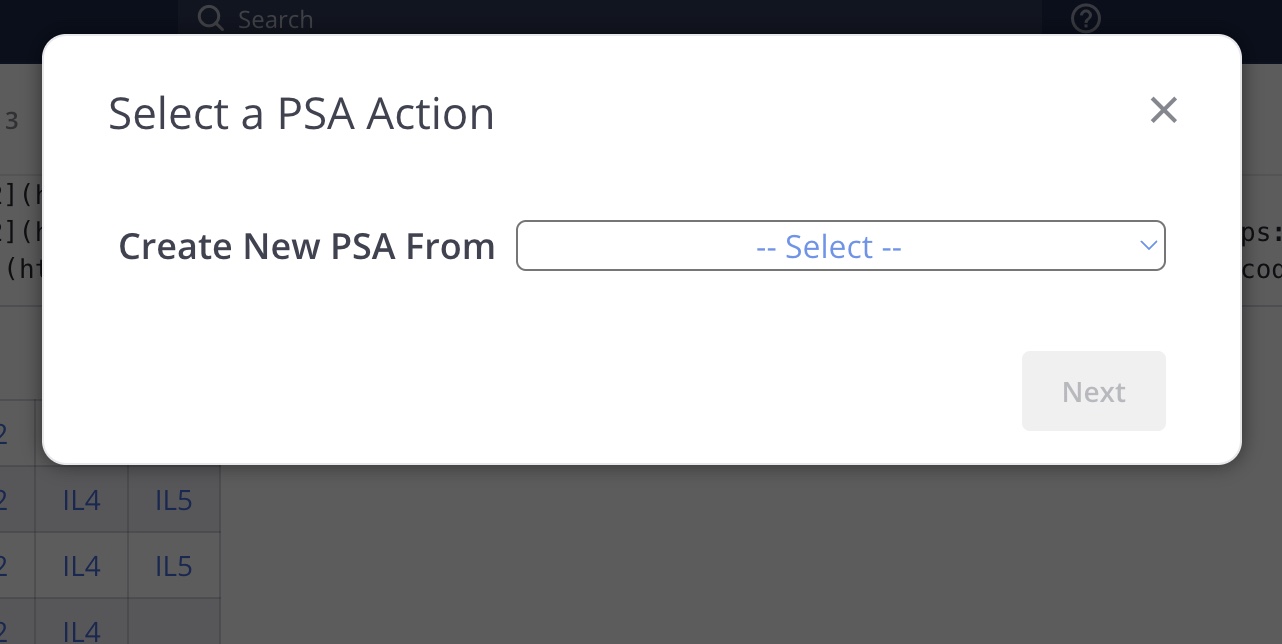
Select the type of PSA you want to create.
- Empty : Create a blank PSA. Go to Step 4! - Template : Create a PSA from a list of templates. These can be templates that you've saved or shared templates that others have created. - Draft : Create a PSA from a list of drafts that you've saved.
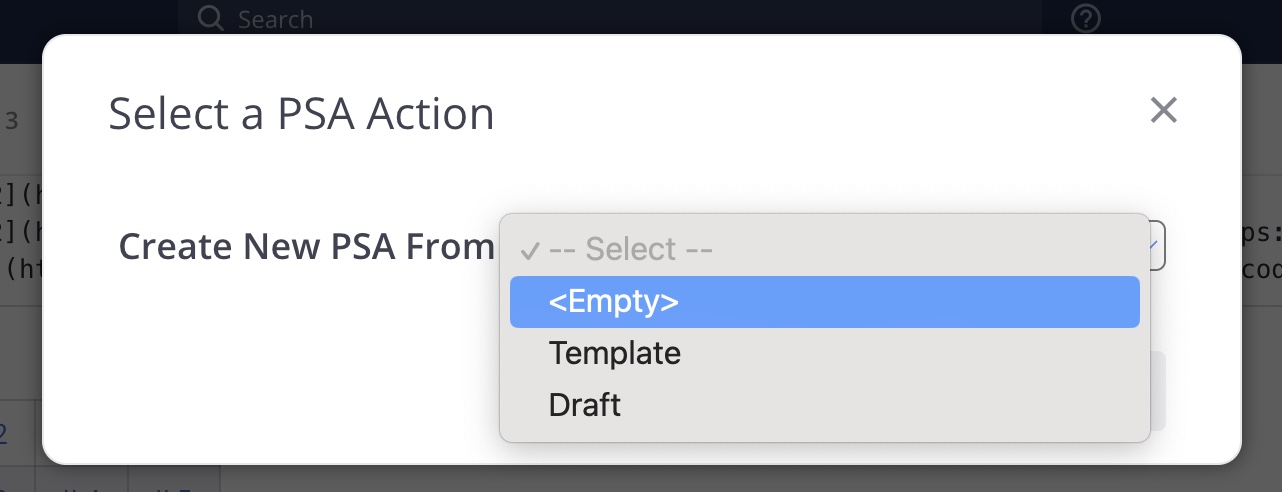
- Empty : Create a blank PSA. Go to Step 4! - Template : Create a PSA from a list of templates. These can be templates that you've saved or shared templates that others have created. - Draft : Create a PSA from a list of drafts that you've saved.
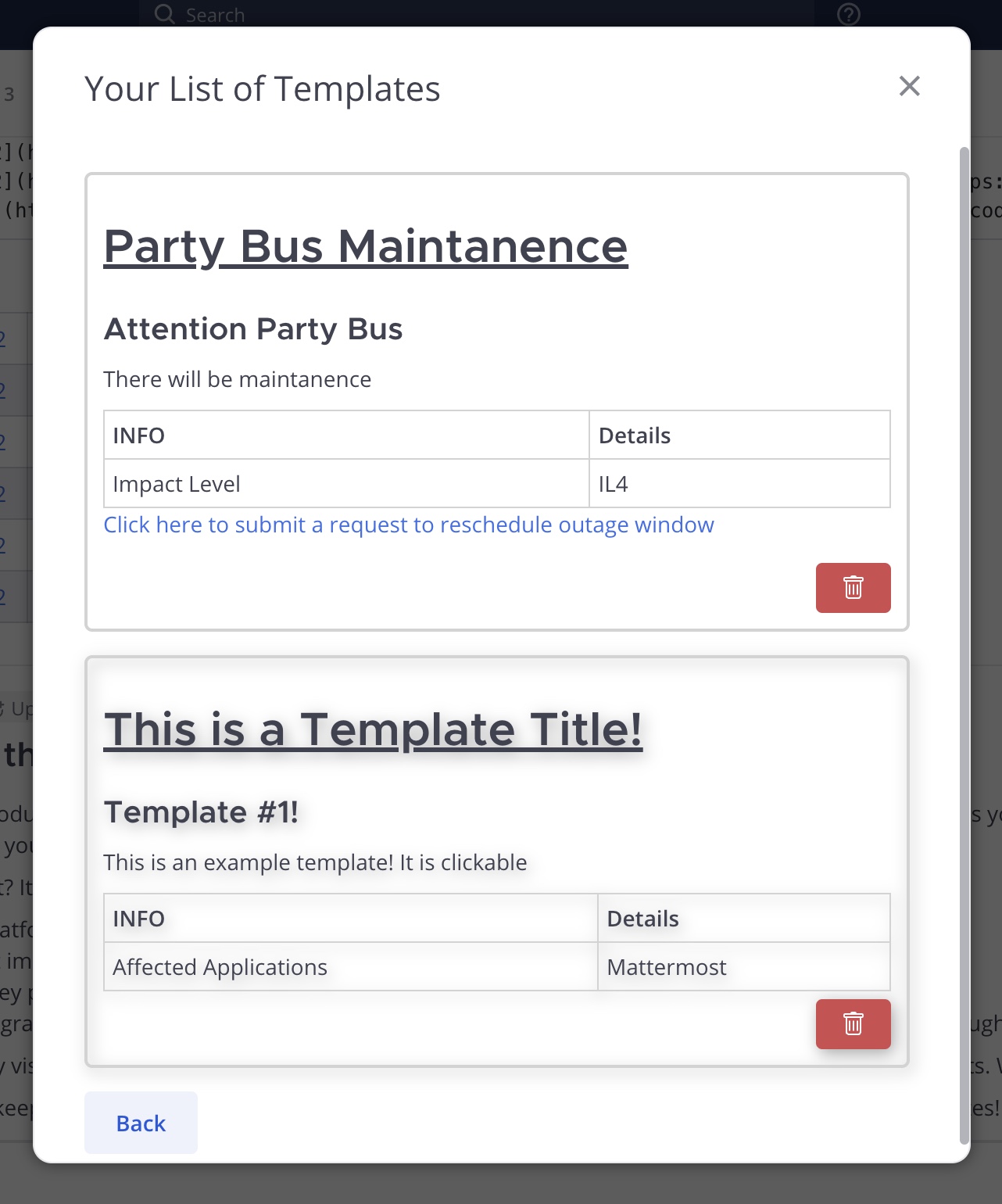
If you selected Draft or Template, you'll be presented with a list of messages. These are your previous drafts and templates. You can delete or modify these by clicking on the message.
Edit the PSA. If you're starting from an empty PSA, the screen will automatically populate default table rows for you to fill out. You can delete/modify/add any table rows ("Add Table Row" button). If you're starting from a draft or template, all fields will be pre-filled and are editable.
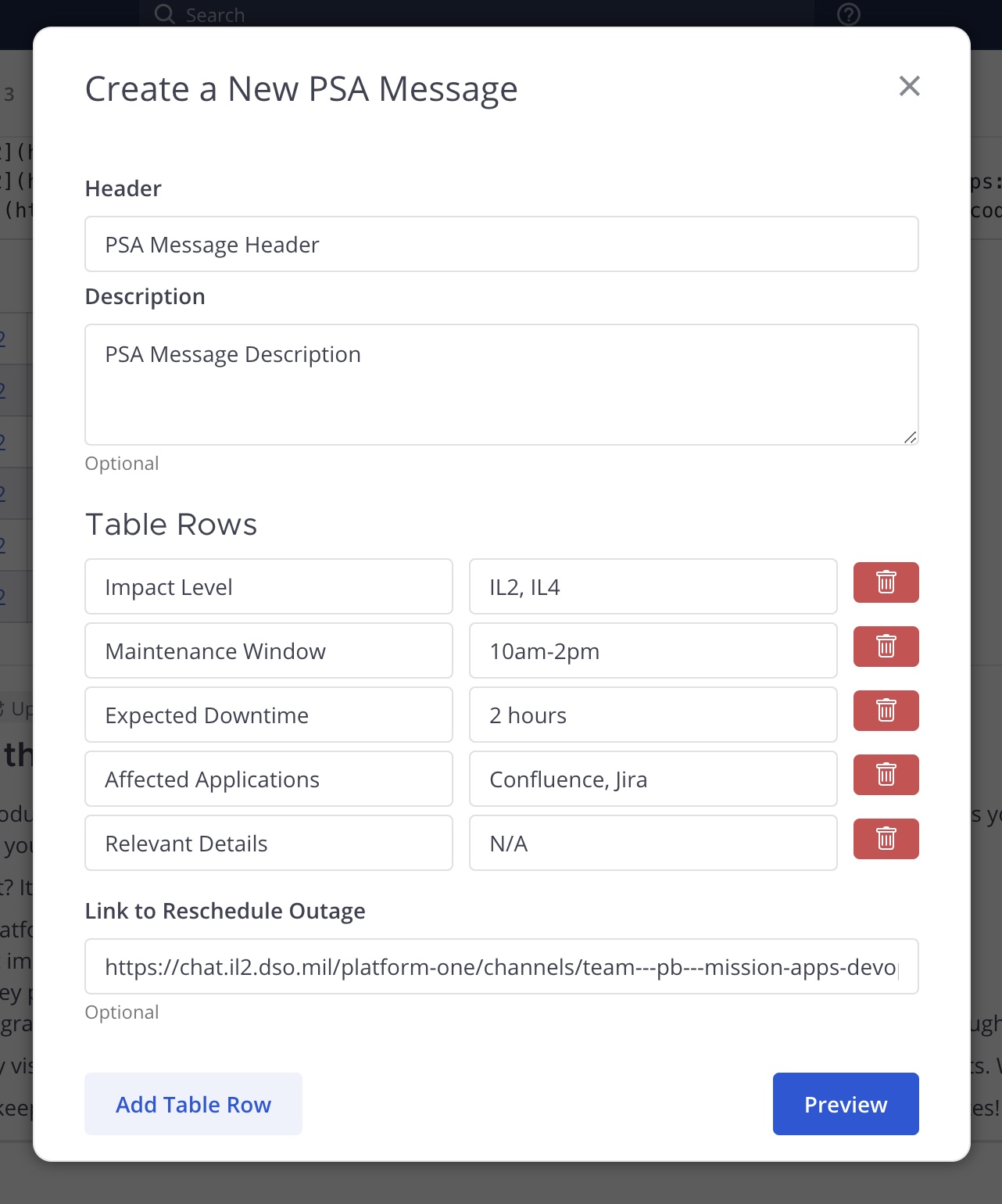
When you are satisfied with your changes, hit the Preview button. You will be shown a preview of your PSA. If you need to change something, hit the Back to Edit button (Back to Step 4). Satisfied with your PSA? Hit the Next button.
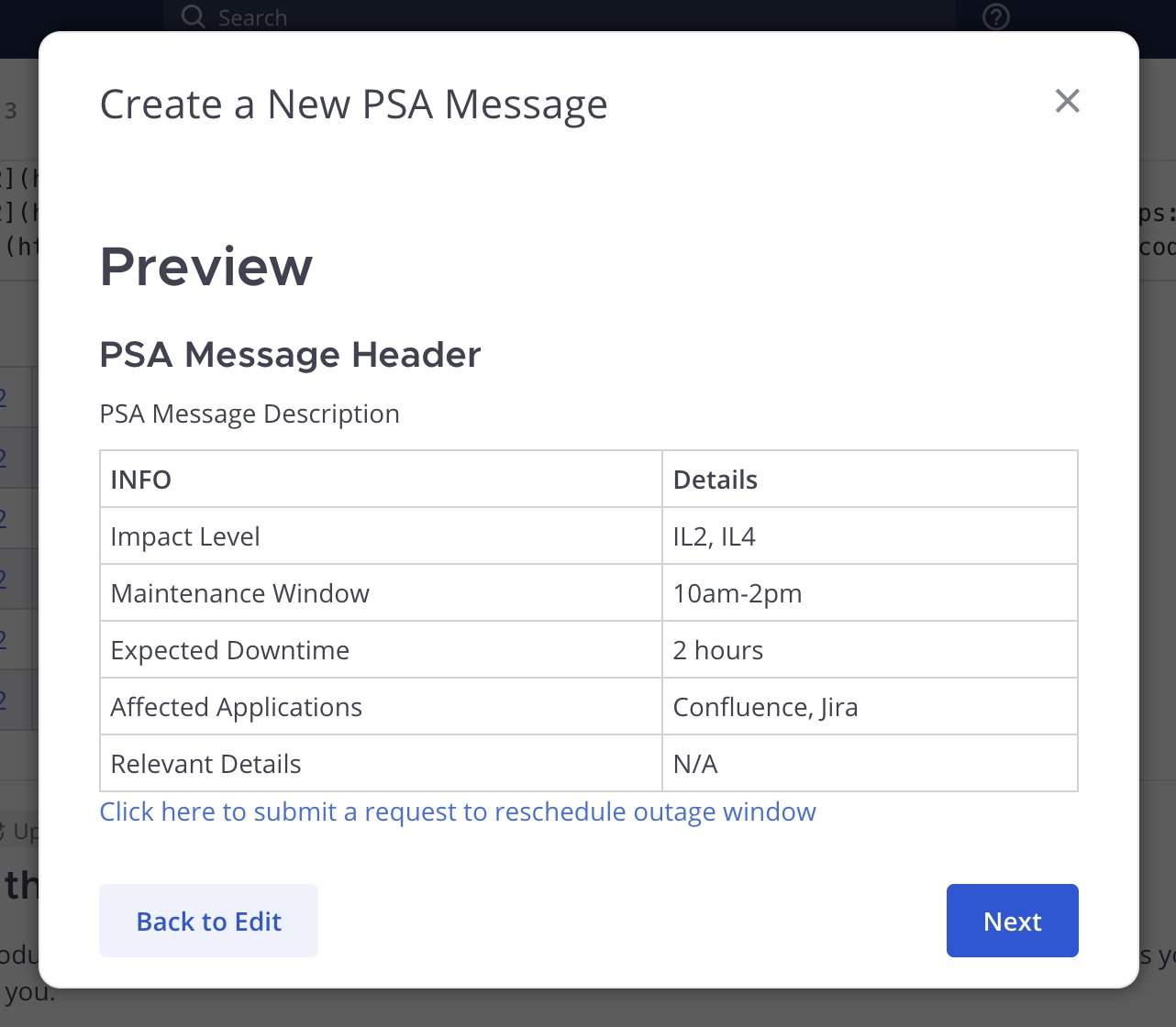
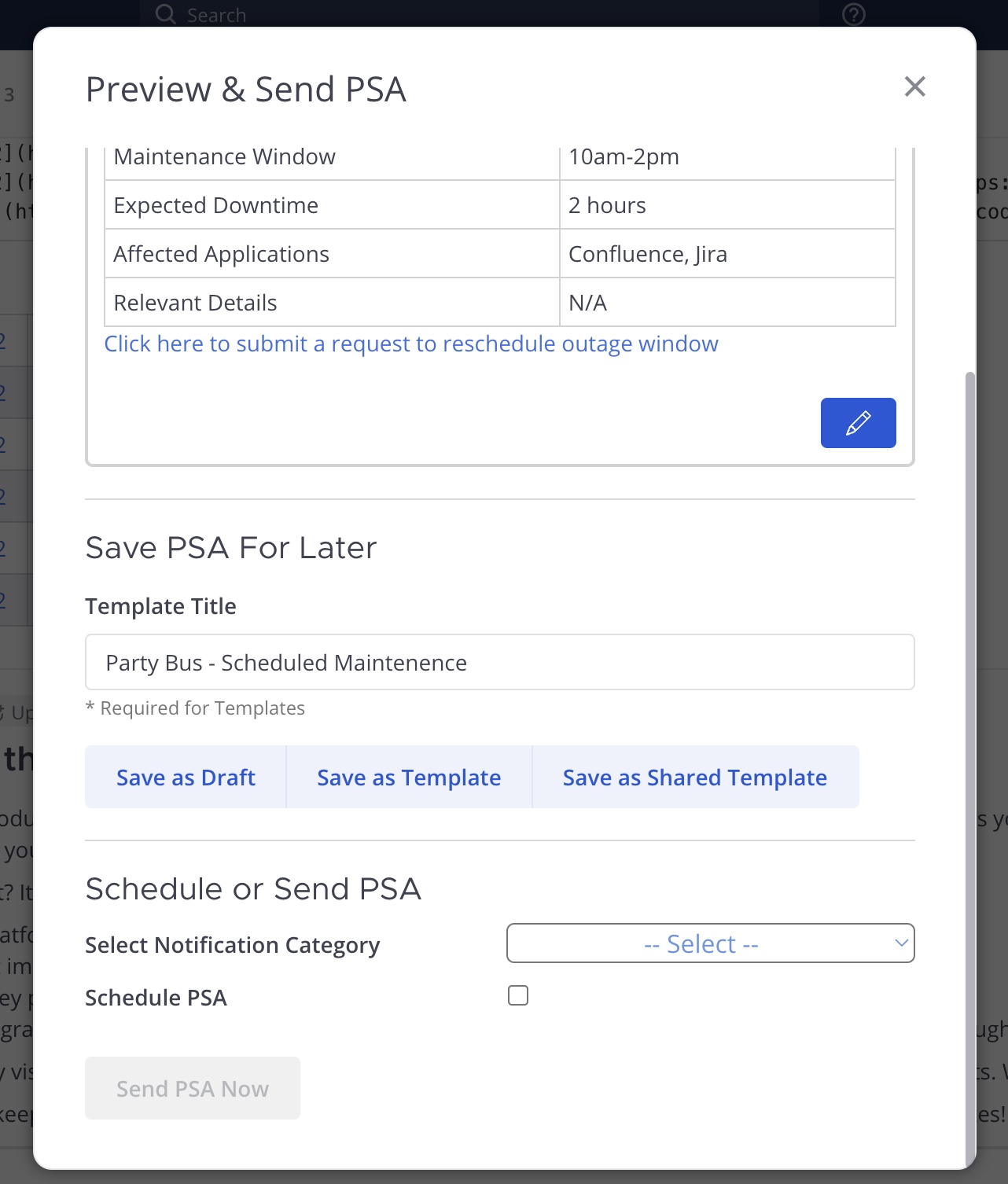
The pop-up will again allow you to view your PSA and return to the edit screen (step 4). Below that, you will have options for saving your PSA as a template or draft. If you are ready to send or schedule your PSA, you will need to select a notification category that fits the type of PSA you wish to send. If you cannot find a category that fits your PSA, it's recommended that you save your PSA as a draft and follow the instructions for creating a notification category below. Options - Save as Draft - Save as Template - Save as Shared Template (Sysadmins only) - Send PSA NOW - Schedule PSA (available after selecting date and time)
Things to Note
If you opted to send the PSA NOW, the time to send your PSA out to everyone will vary depending on the network traffic and the number of Mattermost users on the server.
Notification Categories
PSAs will now be assigned notification categories related to their content, so Mattermost users have the option to filter the PSAs that are most relevant to them. All Mattermost users will have the opportunity to mute notification categories from within the Concierge Tool in Mattermost.
Create
/psa add [category name]: Add a new notification category to the Concierge Tool notification bot settings (FOR ALL MM USERS). Any PSAs sent with this category can be muted by any MM user from within the Concierge Plugin./psa remove [category name]: Remove a notification category from the list of Concierge Tool notification bot settings (FOR ALL MM USERS).