


Mattermost Admin Plugin
IMPORTANT NOTE
You need admin privileges to use this plugin.
Overview
Read this document to understand the Admin Tool in Mattermost and the variety of tools available to administrators on Mattermost.
Usage
Report Tool
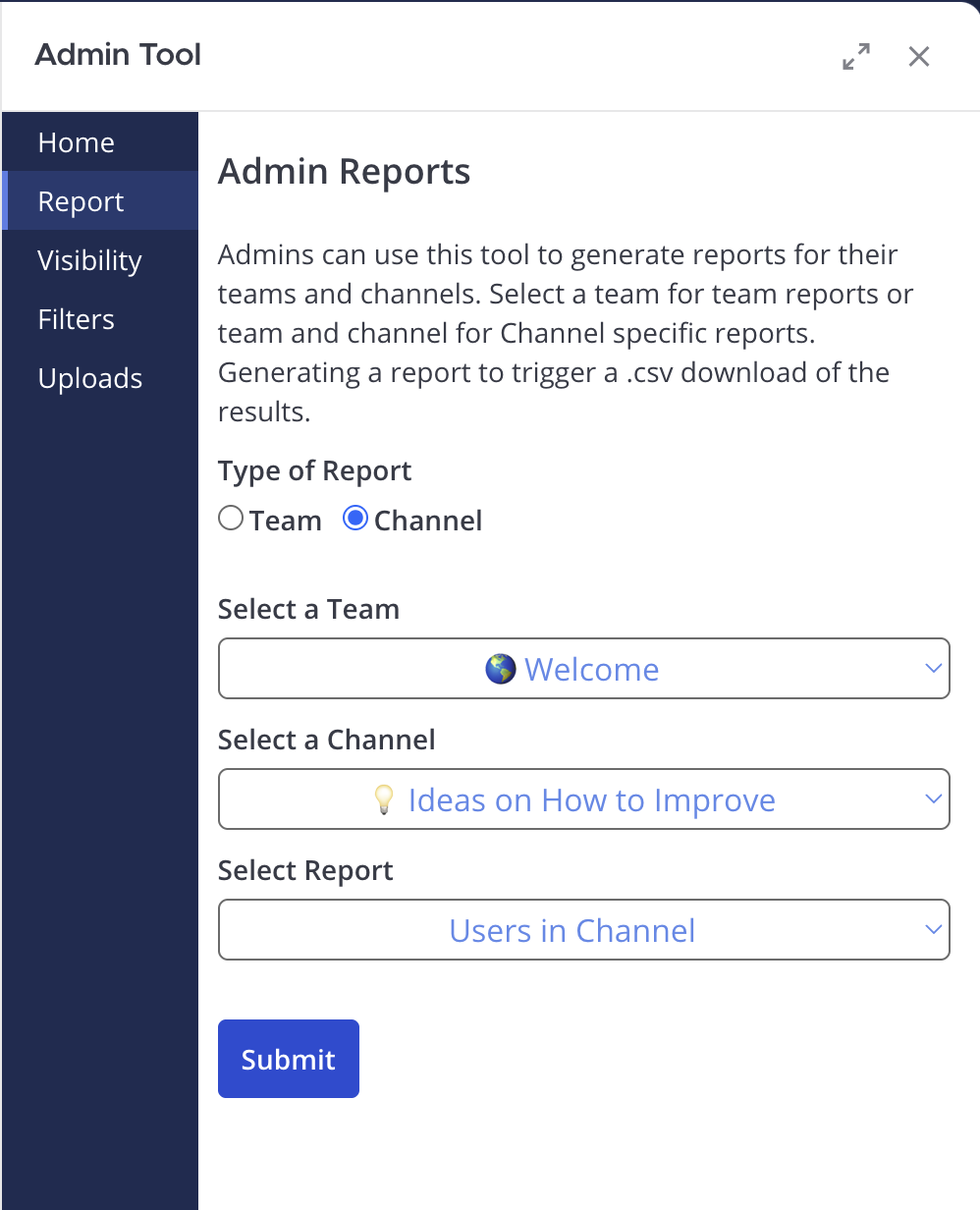
Admins can use this tool to generate reports for their teams and channels. Select a team for team reports or a team and channel for channel-specific reports. Generating a report to trigger a .csv download of the results.
Available Reports
Teams
- Admins in Team
- Users in Team
- Channels in Team
- Provides a list of all active and archived channels in this team, as well as the channel admins associated with each channel.
- User Changes in Team
- Given a number of days to look back, this report will show all of the users who have joined this team as well as the users who have left in that time frame.
Channels
- Users in Channel
- Admins in Channel
Visibility Tool
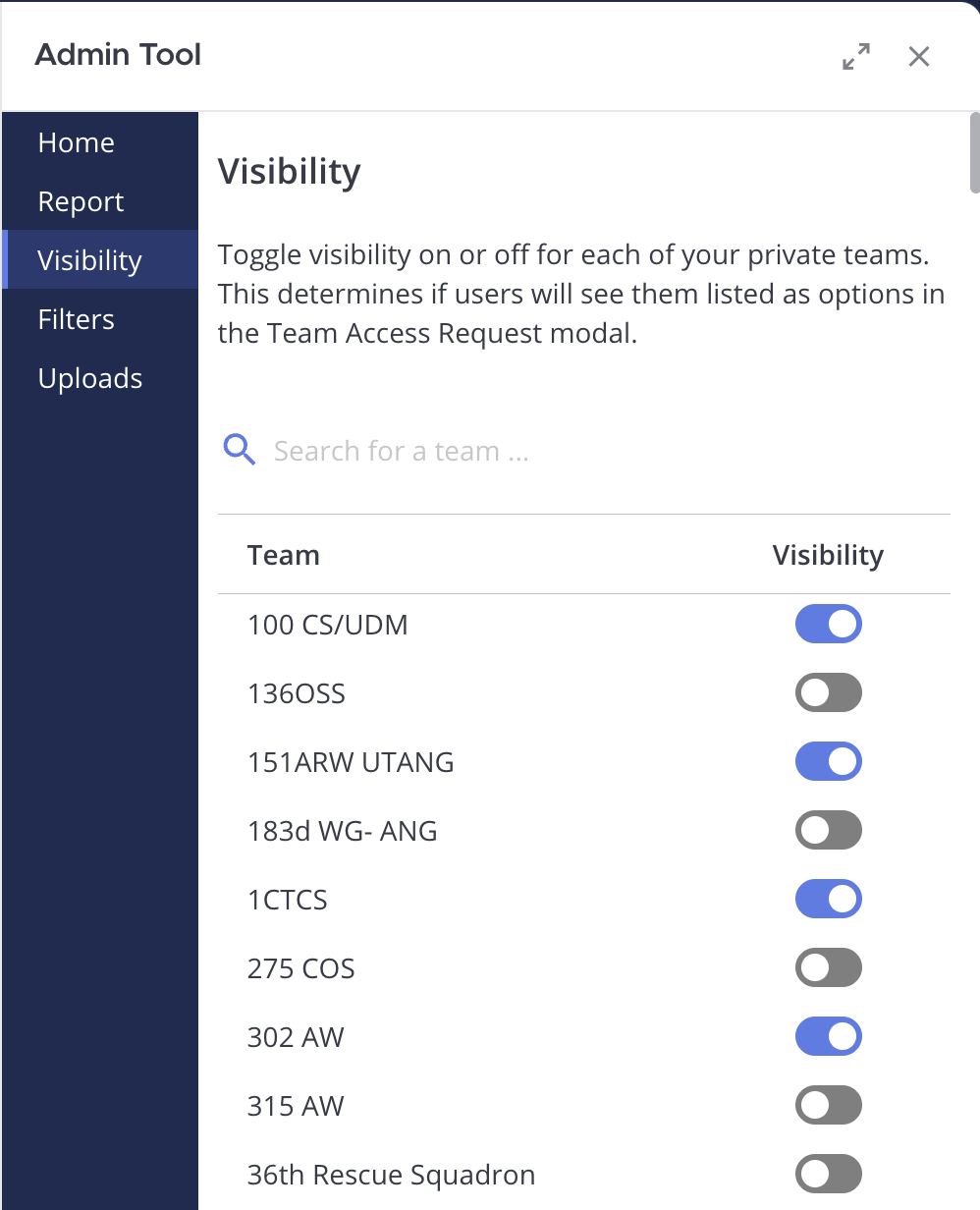
Toggle visibility on or off for each of your private teams. This determines if users will see them listed as options in the Team Access Request modal.
Filters Tool
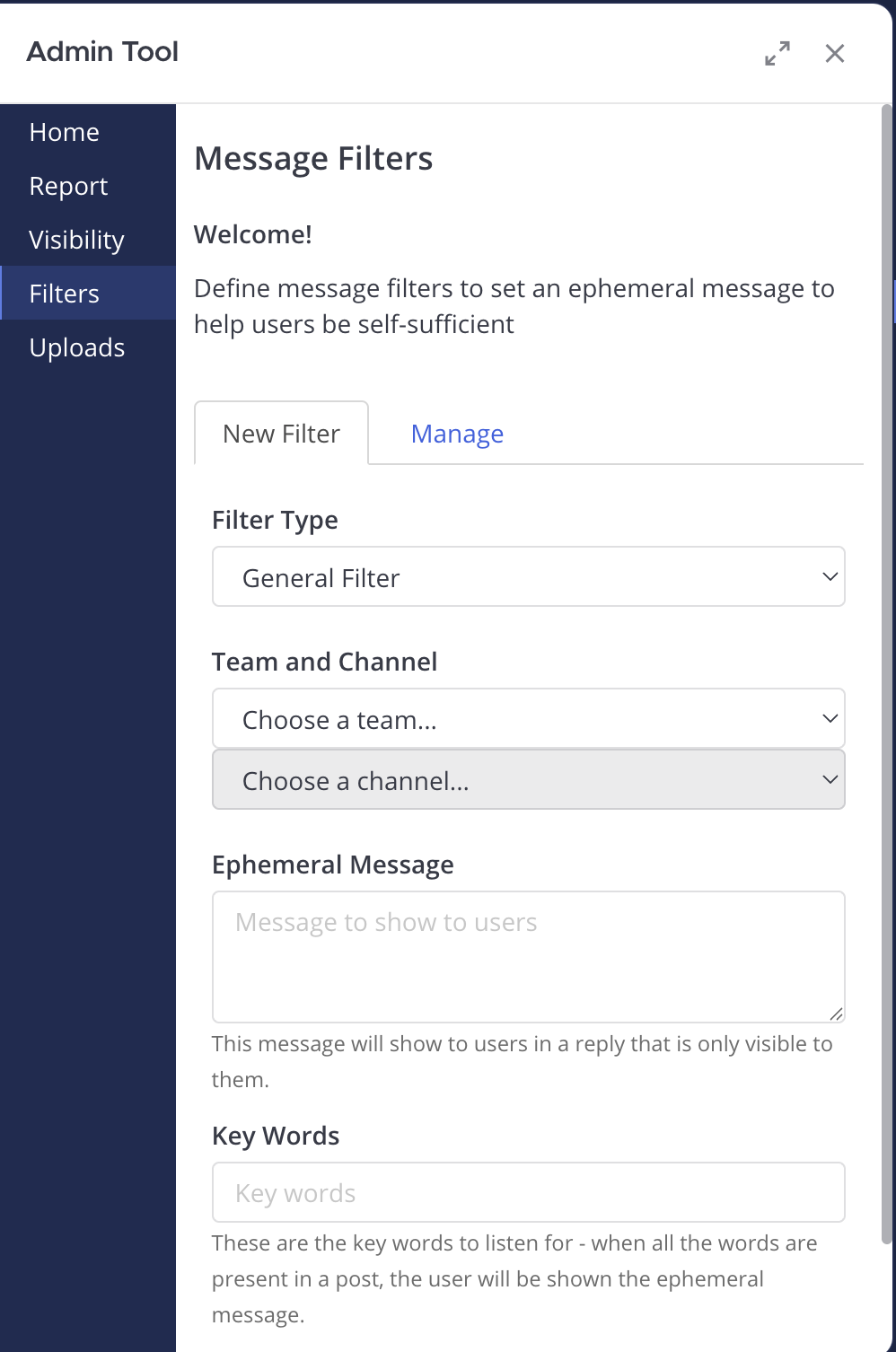
The Message Filters Tool allows admins to specify trigger words within a channel that, when detected, will automatically delete the message and send an ephemeral message created by that admin. The New Filter tab allows you to create new message filters, and the Manage tab allows you to manage and delete existing filters. Only system admins are allowed to create Request Access filters.
Uploads Tool
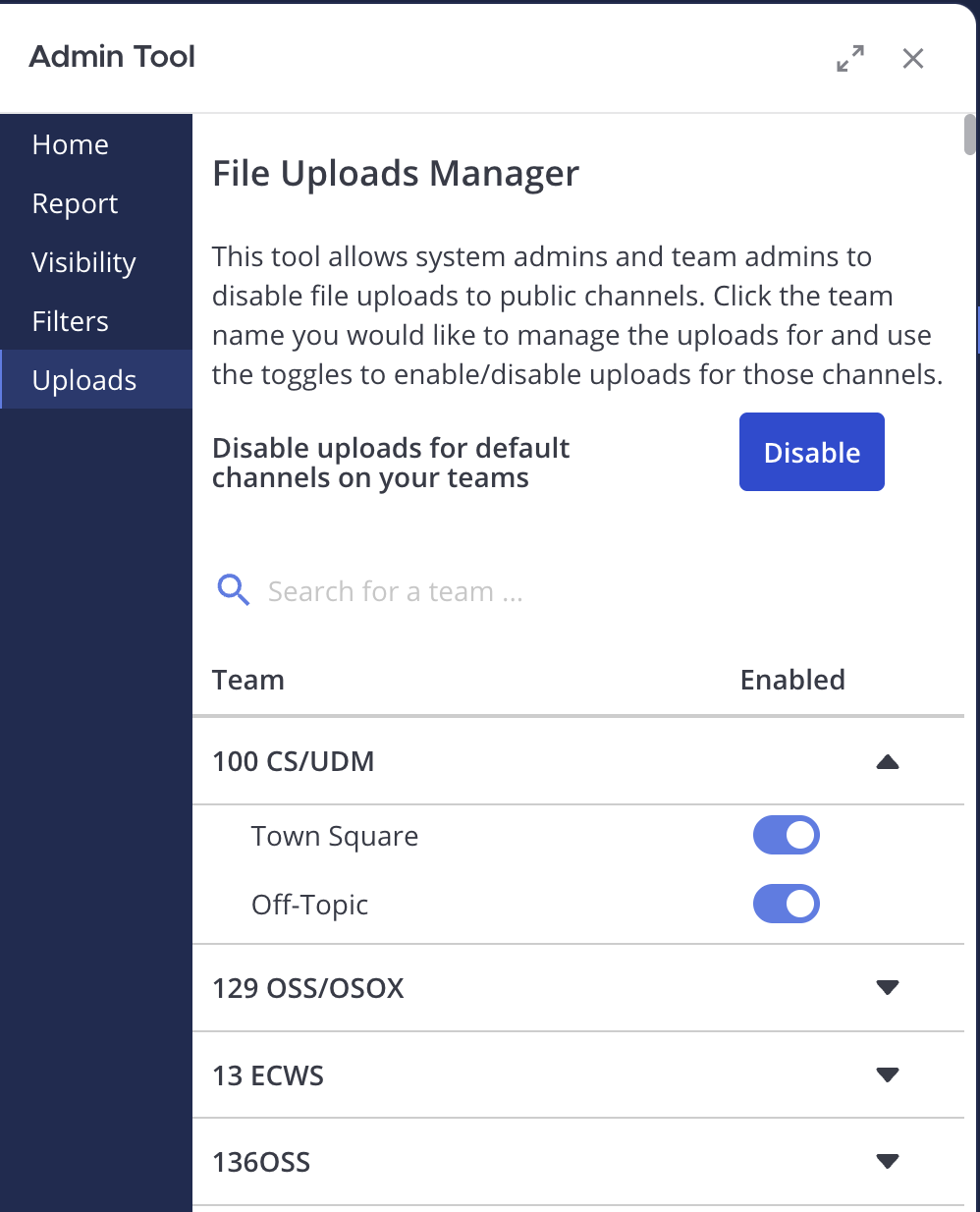
This tool allows system admins and team admins to disable file uploads to public channels. Click the team name you would like to manage the uploads for and use the toggles to enable/disable uploads for those channels.
Disabling Uploads to Default Channels
By clicking the Disable button, you will be turning off uploads for all Town Square channels in the teams you are an admin of. If you are a system admin, this button will turn off uploads for all Town Square channels for teams that you are a member of.
Admin Functionality for Request Access
When users request access to a team via the Join a New Team button or using the slash command /requestaccess team [team-name]. Admins for that team will be sent a message in the Access Requests - [team-name] channel with options to accept or deny that user.
Banning a User
Admins will now have the option to ban a user from requesting to join a team through that message. If a user is banned, they will no longer be able to submit access requests to that team. A direct message from the Admin Bot will be sent to that user that their access request was denied.

Ban Tool Command List for Manual Banning/Unbanning
help: (example:/admin banor/admin ban help) brings up this screen as well as gives examples to evoke each commandban: (use:/admin ban @username) Bans a user from joining the current team you are in. Access requests will automatically be denied.remove ban: (use:/admin ban @username remove) Removes this user's ban from joining the current team.