


Mattermost GitLab Plugin Guide
Overview
Read this document to understand how the Mattermost GitLab plugin can help your teams stay focused and productive with daily task summaries, real-time updates, and notifications on new and closed merge requests, new and closed issues, and tag creation events.
The GitLab plugin also allows you to control which events trigger notifications beyond default events, including merges, issue comments, merge request comments, pipelines, pull reviews, and many more.
Mattermost supports both SaaS and on-premises versions of GitLab.
Mattermost GitLab Plugin Video Demonstration
Watch this video to learn how to use the GitLab plugin.
Setup
Connect a GitLab Account to Mattermost
Follow these steps to connect your GitLab account to Mattermost:
Run the
/gitlab connectslash command in any Mattermost channel to link your Mattermost account with your GitLab account.Disconnect a GitLab account by running the
/gitlab disconnectslash command. Run the/gitlab meslash command to review which account is connected to GitLab.Once connected, run the
/gitlab helpslash command to see what you can do.
Get started
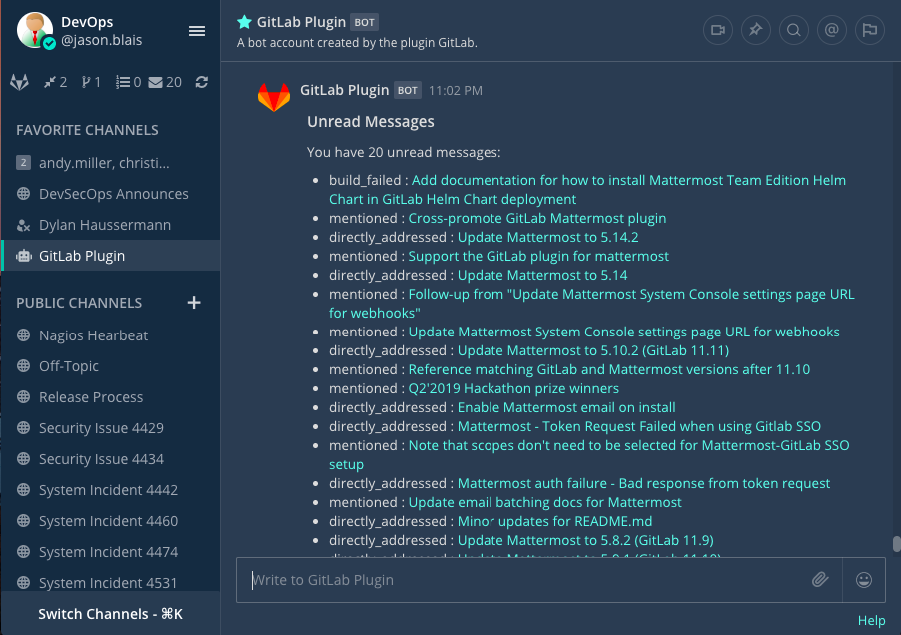
Run the /gitlab todo slash command to get a list of todos, assigned issues, assigned merge requests, and merge requests awaiting your review. Alternatively, use the options located in the left sidebar.
Run the /gitlab webhook slash command to have GitLab send events to Mattermost.
- Example:
/gitlab webhook add group[/project]
Channel Subscriptions
NOTE
CollabTools offers channel subscriptions through webhooks that we believe offer a richer feature set. Please reach out to CollabTools Support to set up channel subscriptions.
Run the /gitlab subscriptions list to review all of your subscriptions.
Run the /gitlab subscriptions add group[/project] [features] slash command to subscribe to a Mattermost channel and receive posts for new merge requests, issues, or other features from a GitLab project. To unsubscribe and stop receiving posts, run the /gitlab subscriptions delete group[/project] slash command.
For each project you want to receive notifications for or subscribe to, create a webhook in a channel where you want to watch events sent from GitLab by running the /gitlab webhook slash command.
- Example:
/gitlab webhook add group[/project].
Update Settings
Run the /gitlab settings [setting] [value] slash command to update your preferences for the integration:
- Turn personal notifications on or off.
- Turn reminders on or off when you connect each day initially.
Get Help
Reach out to us on the CollabTools Support Channel if you experience any issues.